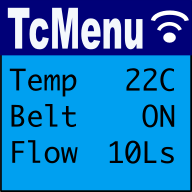
TcMenu Designer Turbo allows you to rapidly generate a menu UI application for Arduino/PicoSDK from your browser, including setting up the display and IoT control. Designed from the ground up for non-trivial embedded menu-based UIs, it can shorten your project significantly. It is built using our web-based visual designer and trusted code generator that's been building menus for nearly 10 years.
Who TcMenu Turbo is for
TcMenu Turbo is a strong fit if you want to:
- Build structured menu-driven UIs for Arduino, PicoSDK, or similar embedded targets
- Configure displays, inputs, and plugins without wiring everything up by hand
- Generate code quickly, while keeping it readable enough to maintain in your IDE
- Add remote or IoT control without building a separate UI stack from scratch
TcMenu Turbo is designed for structured embedded menu applications. For smaller projects, a simpler hand-coded library may be enough, while a GUI framework may be a better fit for full graphical or touch-first interfaces.
Comparison with other menu frameworks
Each of these libraries brings something valuable to the embedded UI world, and "TcMenu Turbo" is designed to sit alongside them rather than compete with them. "TcMenu Turbo" fills a gap between a trivial menu and a full UI: I.E. it provides a modern workflow for structured menus, IoT integration, and rapid iteration through its fluent builder and web‑based designer.
| Feature / Library | TcMenu Turbo >> | Arduino Menu Libraries | LVGL | GEM |
|---|---|---|---|---|
| Design Philosophy | Structured menus with modern tooling and code generation | Lightweight, simple, very Arduino‑friendly | Full GUI framework for rich, touch‑driven UIs | Minimalistic graphic menus for small displays |
| Designer UI | Web‑based designer with live updates | Typically hand‑coded | Hand‑coded layouts | Hand‑coded layouts |
| Code Generation | Automatic, template‑driven, non‑destructive | Manual coding | Manual coding | Manual coding |
| Hardware Support | Broad: LCD, OLED, TFT, U8g2, TFT_eSPI, JavaFX, and more | Varies by library | Extremely broad (touchscreens, GPUs, full GUI systems) | U8g2 + SparkFun Serial Backpack |
| Input Methods | Encoder, buttons, touch, keyboard, remote IoT | Buttons/encoders | Touch‑first | Buttons |
| IoT / Remote Control | Built‑in remote UI + Java API | Rare | Possible but manual | No |
| Complexity | Medium (guided by designer) | Low (great for beginners) | High (full GUI system) | Low |
| Best For | Embedded menus, IoT devices, structured UIs | Simple Arduino projects | Rich GUIs, dashboards, touchscreens | Minimalistic graphic menus |
| Community Strength | Strong docs, examples, and videos | Very approachable for newcomers | Large ecosystem and active development | Clear documentation and focused scope |
Example code taken from real projects
The below shows just how far we've moved the dial on code readability. You can see the menu structure is very human-readable, and if it is human-readable, then not only is it easy to read and maintain, but AI can also understand it. Spend less time in designer and more time in your IDE:
void buildMenu(TcMenuBuilder& builder) {
    builder.usingDynamicEEPROMStorage()
        .actionItem(HIBERNATE_ID, "Hibernate", NoMenuFlags, onHibernate)
        .analogBuilder(INT_EDIT_ID, "Int Edit", ROM_SAVE, NoMenuFlags, 4)
            .offset(0).divisor(1).maxValue(100).unit("%").endItem()
        .subMenu(EXTRAS_ID, "Extras", NoMenuFlags)
            .textItem(EXTRAS_TEXT_ID, "Text", ROM_SAVE, 10, NoMenuFlags)
            .rgb32Item(EXTRAS_RGB_ID, "Color", ROM_SAVE, false, NoMenuFlags)
            .endSub();
}
Not only that, the themes are also very readable; once you've picked a starting theme, you can easily tweak it to your liking without a trip back into the designer. Even overriding individual items to draw in a grid layout is easy:
// we want to layout two items using XBitmap images on the same row, so what we do is to
// use the onRowCol method to specify the row and column
void applyLayout() {
   int requiredRow = 3; // we want the third row to have two items split horizontally
   int numberOfColumns = 2; // We'll split the row into two columns
   TcThemeBuilder themeBuilder(renderer);
   themeBuilder.menuItemOverride(menuDirect)
            .onRowCol(requiredRow, 1, numberOfColumns)
            .withImageXbmp(Coord(20, 20), directBitmapOff, directBitmapOn)
            .apply();
}
As a bonus TaskManagerIO is built in too, there's an inbuilt scheduler that can also handle complex events. Example to schedule a task:
void setup() {
    // .. other code
    taskManager.schedule(repeatMillis(500), []() {
        // do some work here every 500ms, don't do anything that blocks for too long.
    });
    // .. other code
}
And lastly, if you want to use it, all display plugins we've written support TcUnicode, allowing you to use UTF-8 encoded strings in your menu with ease. While still maintaining 100% compatibility with existing graphics libraries.
How it works
Getting from idea to embedded code is a streamlined three-step process:
- Start the Designer: Open TcMenu Web Designer Turbo directly in your browser.
- Build Visually: Create your menu tree, configure display/input plugins, and set up IoT remote control.
- Generate & Build: Generate a complete project (EMF file) ready to compile in CLion, Arduino IDE, or VS Code.
Documentation and Resources
Below you will find detailed guides for every aspect of TcMenu Turbo, from the initial setup to advanced code generation and IO expansion.
- Quick Start: Getting Started with TcMenu Turbo
- GitHub Discussions: Ask questions and share your projects
- TcMenu Docs: Full TcMenu library and plugin documentation
- Reference Docs: Full library API Reference
Desktop users only
Although strongly discouraged, you can still download the legacy version of TcMenu Designer, but we strongly recommend using the web designer. If there's any reason you can't use web designer, let us know in the tcMenu GitHub discussions.
Full Documentation Hub
Getting started with the web menu designer
Summary Our web-based menu designer (TcMenu Turbo) creates and maintains your embedded menu project online. This guide assumes initializer mode . In initializer mode you set up the basic menu structure, choose and configure plugins for your hardware, then run code generator. Using initializer, all plugin code and wiring will be generated into the and files. You menu structure...
Using menu designer as an embedded initializer
You can choose to use tcMenu embedded menu designer as an initializer. This means that you can add new menu items without having to rebuild your project. This makes it much easier to use tcMenu. In the initializer case, the intended workflow is to create a project that works with a given display driver and input configuration and then manage the...
Using menu designer to fully manage your menu structure
This is the traditional way of using tcMenu, where you allow the menu designer to manage your menu structure and round-trip every time new menu items were added. This means that you had to run through designer every time you added a new menu item, which divided opinion, some liked it; others thought that it was a painful process. With the...
Designing menu layouts using web designer
From the tab in the header, you can visually create your embedded menu in the web editor interface. From here you can adjust the menu structure, add menu items, sub-menus, and configure their properties. Any items you add will be inserted in the currently selected sub-menu. Just as with desktop designer, copy and paste works too. In addition to adding...
Menu Code generation for Arduino, PicoSDK, mbed
TcMenu supports a wide range of displays, input devices, and remote control options. To support such a range of hardware, a plugin system is required. Once you're menu is edited and ready, select from the page header to open the generator page. We'll discuss the page below. Each part of this page is discussed in detail below. Configuring the board...
These may be of interest
- Similar - Belt clamps - what a find!
- Similar - Hand-built router table for the workshop
- Similar - Things learnt from building the first turntable.
- Similar - HI-FI Collective cable kit 6
- Similar - Orbit, a high performance DIY turntable.

Supporting us
We maintain several popular embedded projects and work hard to make them even better. If you're looking for commercial services, please do consider us.
Alternatively, you can buy us a coffee to say thanks.
Sharing links
Learn about TcMenu
We build and maintain an embedded menu designer and framework that works on many platforms.